We are please to announce our schedule of workshops for the upcoming semester. If you have suggested programming or other feedback, please email dissco@vassar.edu
Summary of Events
01/23 1:30 pm Intro to Excel & Data Literacy
01/31 11:00 am Stay Organized & Save Time with Zotero Citation Manager
02/04 11:00 am Overleaf Latex Series Part 1: Creating & Editing Equations
02/10 12:30 pm Intro to RISO Printing
02/12 3:00 pm Intro to the Vassar College Libraries Digital Library
02/14 1:00 pm Intro to Locating Data: Social Sciences Edition
02/19 3:00 pm Poster Design for Academia
02/20 10:00 am Intro to Illustrator for Laser Cutting
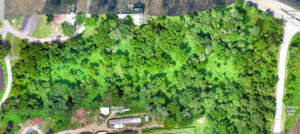
02/25 9:00 am Intro to Drone Mapping (with GEOG 226)
02/25 10:30 am Intro to ArcGIS Online and Story Maps Part 1 (with ENST 125)
02/26 3:30 pm Stay Organized & Save Time with Zotero Citation Manager
02/28 1:00 pm AI Tools for Your Literature Search
03/03 3:00 pm Intro to Omeka
03/04 10:00 am Overleaf Latex Series Part 2: Creating & Editing Figures
03/05 3:00 pm Intro to Audio Recording and Campus Resources
03/07 11:00 am Campus Resources for Building Websites
03/25 10:00 am Overleaf Latex Series Part 3: References & Zotero Integration
03/25 10:30am Intro to ArcGIS Online and Story Maps Part 2 (with ENST 125)
03/27 10:00am Terminate your Fear of the Terminal
03/27 3:30 pm Introduction to Airtable
03/31 3:00 pm Intro to Scalar
04/08 2:30 pm Using InDesign for Academic Publishing
04/16 3:30 pm Intro to Generative Visual AI
04/23 3:00 pm Fun with AI Transcription and Text Analysis Tools
Intro to Excel and Data Literacy
January 23, 2025, 1:30 – 3 PM, BLS 101 (Laybourn Visualization “SciVis” Lab)
The first step of making sense of data is often organizing it into a spreadsheet. Once entered and organized, spreadsheets can be used to sort, filter, analyze, and visualize patterns and trends that might not be apparent from our own limited observations. Using contemporary datasets in environmental and earth science as examples, participants will learn how to create and navigate spreadsheets in Excel, sort and filter data, write formulas to perform calculations, summarize and format data into tables for a report, and generate graphs from data. Contact Neil Curri to register or for questions (necurri@vassar.edu / x7708).
 Stay Organized & Save Time with Zotero Citation Manager
Friday, January 31, 2025, 11:00 – 11:45 am, Main Library, Electronic Classroom Rm. 160
Looking to save time formatting your bibliography? Overwhelmed by unorganized PDFs? Zotero is a free citation manager that helps you organize references, annotate pdfs, and generate in-text citations and bibliographies. Zotero is most useful when used during the research process – finding sources, building your Zotero library, and using Zotero’s citation tools all work together to facilitate your research and writing. During this workshop, you will learn how to:
- Create a Zotero library
- Organize and share references
- Generate bibliographies in your preferred citation style
- Format in-text citations and reference lists in Word and Google Docs
Led by Elizabeth Salmon, Social Science Librarian. Registration appreciated but not required.
Overleaf Latex Series Part 1: Creating & Editing Equations
Tuesday, February 4, 2025, 11:00 am – 12:00 pm, Laybourne Visualization Laboratory, BLS 101
Interested in using LaTeX language to draft documents? LaTeX is very useful for generating documents that include equations, figures, and citations, especially if they are referenced within the text. One environment for using LaTeX is Overleaf, which is like the “Google Docs” of LaTeX. Come join Part 1 of the Overleaf workshop series to learn the basics of generating equations within LaTeX to generate professional looking PDF documents. Either bring your laptop or use one of the computers in the SciVis lab to participate in hands-on examples during the workshop! Having an account set up on Overleaf beforehand would be ideal (and it is free!). https://www.overleaf.com/login
Led by Susannah Zhang, Academic Computing Consultant for the Natural Sciences
Intro to RISO Printing
Monday, February 10, 2025, 12:30 – 1:30 Main Library, Electronic Classroom Rm. 160
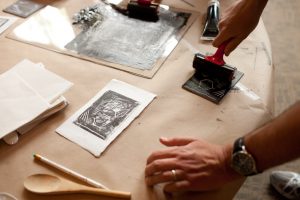
The Fabulous Innovation Lab has an amazing and popular new RISO printer. Come to this workshop and learn how to use Illustrator & Photoshop to prep digital files for RISO printing and to learn more about RISO printing in general. Led by Academic Computing Services
 Intro to the Vassar College Libraries Digital Library
Wedneday, February 12, 2025, 3:00-4:00 PM, Zoom
The Digital Library includes photos, audiovisual materials, manuscripts, and much more! Did you know it now also provides access to Finding Aids, Vassar Scholarship, and a Herbarium? Join us for a tour of the system followed by a Q&A. The tour will include tips on how to find what you need for your research and how to submit your work to the Vassar Scholarship repository. Led by Nicole Scalessa of Digital Scholarship and Technology Services.
Register Online: https://libcal.vassar.edu/event/14050723
If you cannot attend the specified date we can discuss this topic by appointment: https://calendar.app.google/fTatyJxU7g5EPBGv5
Introduction to Locating Data: Social Sciences Edition
Friday, February 14, 2025, 1:00 – 2:00pm, Zoom
Where do you find trustworthy data and statistics for your research? Who owns data, and who uses data? This workshop provides an introduction to the data landscape with a focus on research in the social sciences. During this workshop we will access data using Social Explorer, a data mapping tool that includes U.S. census data back to 1790, the Inter-university Consortium for Political and Social Research (ICPSR) data archive, and more.
Register to receive Zoom details. Presented by Elizabeth Salmon, Social Science Librarian, as part of International Love Data Week, “Whose Data is It, Anyway?”
 Poster Design for Academia
Wednesday, February 19, 2025, 3:00 – 4:00 Main Library, Electronic Classroom Rm. 160
Need a poster for an academic conference? Want to print a giant poster for your event? Come to this hands-on workshop, learn basic design and how to use Illustrator, Powerpoint or Google Slides to make a poster. Led by Nicole Scalessa and Baynard Bailey. Please rsvp to babailey@vassar.edu (suggested but not required).
Intro to Illustrator for Laser Cutting 
Thursday, February 20, 2025, 10;00 -11:00 am, Main Library, Electronic Classroom Rm. 160
Prepping materials for laser cutting and making has never been easier! Please join us for this introductory workshop where we’ll learn how to use Adobe Illustrator to create and prep designs to be cut out of cardboard, wood, metal or other materials. Led by Academic Computing Services.
 Intro to Drone Mapping
Tuesday, February 25, 2025, 9:00 – 10:15 AM, Archery Field (intersection of Kenyon Hall Dr. and Sunset Lake Dr.) Map
(Inclement weather date: Thursday, February 27, 2025)
Drone mapping is the process of creating high-resolution, spatially-accurate images and data for applications from urban planning to agricultural crop monitoring to ecological research and monitoring. In this workshop, you will learn the basics of drone operation and safety, how to plan for and capture images of a survey area, and about processing the imagery in photogrammetry software to create an orthomosaic image (and digital surface/elevation models) of the survey area. To register or for questions contact Neil Curri (necurri@vassar.edu / x7708).
 Intro to ArcGIS Online and Story Maps, Part 1 (with ENST 125)
February 25, 2025, 10:30 am – 11:45 am, Main Library, Electronic Classroom Rm. 160
Learn how to find geographic data and make maps using ArcGIS Online, a cloud-based geospatial mapping platform. Maps can be private, or shared with a group of collaborators, or shared publicly. Participants will also learn how to create digital essays using ArcGIS StoryMaps, which integrates maps created in ArcGIS Online with text, images, videos, and other media. Users can share their stories with others, and use them to create awareness, influence opinions, or affect change. This workshop (Part 1) covers ArcGIS Online and finding maps and data sources related to your topic, with a focus on environmental and climate justice topics. Please email Neil Curri (necurri@vassar.edu) to register or if you have any questions.
Stay Organized & Save Time with Zotero Citation Manager
February 26, 2025, 3:30 – 4:15pm, Main Library, Electronic Classroom Rm. 160
Looking to save time formatting your bibliography? Overwhelmed by unorganized PDFs? Zotero is a free citation manager that helps you organize references, annotate pdfs, and generate in-text citations and bibliographies. Zotero is most useful when used during the research process – finding sources, building your Zotero library, and using Zotero’s citation tools all work together to facilitate your research and writing. During this workshop, you will learn how to:
- Create a Zotero library
- Organize and share references
- Generate bibliographies in your preferred citation style
- Format in-text citations and reference lists in Word and Google Docs
Led by Elizabeth Salmon, Social Science Librarian. Registration appreciated but not required.
AI Tools for Your Literature Search
Friday, February 28, 2025, 1:00 – 2:00 pm, Main Library Electronic Classroom Rm. 160
 As part of our DiSSco AI series, join us to experiment with AI tools that support the discovery and exploration of academic research. This workshop will review a few tools like Research Rabbit, as well as a quick introduction to evaluating AI discovery tools, and an overview of how and when to use AI tools to supplement your research process. Led by Elizabeth Salmon, Social Science Librarian. Registration appreciated but not required.
Intro to Omeka
Monday, March 3, 2025, 3:00- 4:00 PM on Zoom
Omeka is a free, open-source content management system for online digital collections that allows users to publish and exhibit scholarly collections and cultural heritage objects. The Vassar College Digital Scholarship Services Collaboration (DiSSCo) provides a web hosting resource called vassarspaces.net. This service, a Domain of One’s Own (DoOO) product, provides the flexibility for anyone in our academic community to build websites on a variety of platforms, including Omeka. Led by Nicole Scalessa of Digital Scholarship and Technology Services.
Register Online: https://libcal.vassar.edu/event/14050897
If you cannot attend the specified date we can discuss this topic by appointment: https://calendar.app.google/fTatyJxU7g5EPBGv5
Overleaf Latex Series Part 2: Creating & Editing Figures
Tuesday, March 4, 2025, 10:00 – 11:00am, Laybourne Visualization Laboratory (SciVis), BLS 101Interested in using LaTeX language to draft documents? LaTeX is very useful for generating documents that include equations, figures, and citations, especially if they are referenced within the text. One environment for using LaTeX is Overleaf, which is like the “Google Docs” of LaTeX. Come join Part 2 of the Overleaf workshop series to learn the basics of formatting figures within LaTeX to generate professional looking PDF documents. Either bring your laptop or use one of the computers in the SciVis lab to participate in hands-on examples during the workshop! Having an account set up on Overleaf beforehand would be ideal (and it is free!). https://www.overleaf.com/login
Led by Susannah Zhang, Academic Computing Consultant for the Natural Sciences
Intro to Audio Recording and Campus Resources

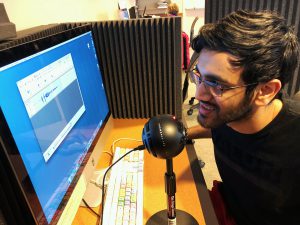
In the summer of 2024, the exploring transfer students were some of the first to try out the new setup.
Wednesday 3:00 March 5, 11:00 – 11:45 am, Main Library Electronic Classroom, 160
Planning to record voice or music and you have never done it before? Interested in podcasting? Perhaps you have an interview you need to edit and share? We’ll review free and cross-platform tools and review resources for audio production. We’ll conclude by visiting the audio nook and the studio in the basement of Chicago Hall. Led by Baynard Bailey of Academic Computing Services.
 Campus Resources for Building Websites
Friday, March 7, 2025 3:00-4:00 pm Main Library, Electronic Classroom Rm. 160
Need a website? We will review the options you have available to you as a member of the Vassar Community. We’ll also highlight our cloud resource : vassarspaces.net – where we empower users to become sys admins and install their own apps (WordPress, Scalar, Omeka and more!). Led by Baynard Bailey of Academic Computing Services and Nicole Scalessa of Digital Scholarship and Technology Services.
Register: https://libcal.vassar.edu/event/14051353
Overleaf Latex Series Part 3: References & Zotero Integration
Tuesday, March 25, 2025, 10:00 – 11:00am, Laybourne Visualization Laboratory (SciVis), BLS 10
Interested in using LaTeX language to draft documents? LaTeX is very useful for generating documents that include equations, figures, and citations, especially if they are referenced within the text. One environment for using LaTeX is Overleaf, which is like the “Google Docs” of LaTeX. Come join Part 3 of the Overleaf workshop series to learn the basics of citations within LaTeX using BibTeX to generate professional looking PDF documents. How to use your Zotero citations with BibTeX will also be covered. Either bring your laptop or use one of the computers in the SciVis lab to participate in hands-on examples during the workshop! Having an account set up on Overleaf beforehand would be ideal (and it is free!). https://www.overleaf.com/login Additionally, having a Zotero account, https://www.zotero.org, beforehand would also be helpful, but not required.
Co-led by: Susannah Zhang, Academic Computing Consultant for the Natural Sciences
Elizabeth Salmon, Social Science Librarian
Intro to ArcGIS Online and Story Maps, Part 2 (with ENST 125)
March 25, 2025, 10:30 am – 11:45 am, Main Library, Electronic Classroom Rm. 160
Learn how to find geographic data and make maps using ArcGIS Online, a cloud-based geospatial mapping platform. Maps can be private, or shared with a group of collaborators, or shared publicly. Participants will also learn how to create digital essays using ArcGIS StoryMaps, which integrates maps created in ArcGIS Online with text, images, videos, and other media. Users can share their stories with others, and use them to create awareness, influence opinions, or affect change. This workshop (Part 2) covers features and functions in Story Maps to integrate your ArcGIS Online maps and other media in your story, with a focus on environmental and climate justice topics. Please email Neil Curri (necurri@vassar.edu) to register or if you have any questions.
Terminate your Fear of the Terminal 
Thursday, March 27, 2025, 10:00 – 11:00am, Laybourne Visualization Laboratory (SciVis), BLS 101
Want to finally get comfortable in the terminal? Not only is the terminal another way of using a PC; it’s a powerful tool that is designed to work more around your thinking! In this workshop we’re going to help curious terminal users of almost any background and skill set. We can go over basic commands like SSH, CP, SCP, and how to see files and executables in a different way. We’ll cover how to get logged into systems, find files and get them to the right places, using your apps, and start building new workflow logic!
Learn it once, use it everywhere: The fundamentals you learn here will be valuable for a long time. They are portable around the Mac Terminal, increasingly usable in Windows, and every Linux distro. Even Git, AWS, and Android use some of the style! Either bring your laptop or use one of the computers in the SciVis lab to participate in hands-on examples during the workshop!
Co-led by: Jesse Hayward, Systems Administrator for High Performance Computing
Susannah Zhang, Academic Computing Consultant for the Natural Sciences
 Introduction to Airtable
Thursday, March 27, 2025, 3:30 – 4:30 pm, BLS 101 (Laybourne Visualization “SciVis” Lab)
This workshop provides a comprehensive introduction to Airtable, a platform that combines the functionality of spreadsheets and databases. Participants will learn the basics of creating and customizing tables, using views to filter and sort information, and linking records. The session will also cover Airtable’s collaboration features and automation capabilities, making it a valuable tool for academic projects, administrative tasks, and team management. (Note: Vassar College does not have an institutional license available for Airtable. Features explored in this workshop will be on the free tier. Departments and offices, after consultation with CIS, may purchase individual subscriptions.)
Led by Julian Aguilar of Academic Computing Services. Registration appreciated but not required. Capacity: 15
Intro to Scalar
Monday, March 31, 2025, 3:00-4:00 PM on Zoom
Scalar is an open source, web-based publishing software from the University of Southern California’s Alliance for Networking Visual Culture that allows you to create networked, multi-media online publications.This workshop will begin with the basics of installation along with creating accounts, projects, and content path. It will also cover the management and inclusion of media, such as images and video. Led by Nicole Scalessa of Digital Scholarship and Technology Services.
Register Online: https://libcal.vassar.edu/event/14050897
If you cannot attend the specified date we can discuss this topic by appointment: https://calendar.app.google/fTatyJxU7g5EPBGv5
 Using InDesign for Academic Publishing
Tuesday, April 8, 2025, 2:30 – 3:30 pm, BLS 238 (Conference Room)
This workshop introduces Adobe InDesign, a powerful tool for print design. Participants will learn best practices for structuring documents, such as setting up consistent formatting, managing tables of contents, and preparing files for print or digital distribution. Whether you’re publishing a scholarly publication or a creative project, this workshop will provide the knowledge to facilitate your engagement with publishing design teams to bring your ideas to life.
Led by Julian Aguilar of Academic Computing Services. Registration appreciated but not required. Capacity: 15
Intro to Generative Visual AI 
Wednesday, April 16, 2025, 3:00 pm – 4:00 pm Library Electronic Classroom, Rm. 160
Part of our DiSSCo AI workshop series, in this workshop we’ll explore easy to use free tools out there for generating memes and artwork. Come to try these tools and and discuss the latest AI trends. Led by Baynard Bailey of Academic Computing Services.
 Fun with AI Transcription and Text Analysis Tools
Wednesday, April 23, 2025 3:00-4:00 PM Location: Library Electronic Classroom.
In this hands-on workshop we will create an audio transcription from an MP3 using MACWhisper and then apply a variety of text analysis tools on the output.
Register Online: https://libcal.vassar.edu/event/14051325
If you cannot attend the specified date we can discuss this topic by appointment: https://calendar.app.google/fTatyJxU7g5EPBGv5
 Omeka is a free, open-source content management system for online digital collections that allows users to publish and exhibit scholarly collections and cultural heritage objects. The Vassar College Digital Scholarship Services Collaboration (DiSSCo) provides a web hosting resource called vassarspaces.net. This service, a Domain of One’s Own (DoOO) product, provides the flexibility for anyone in our academic community to build websites on a variety of platforms, including Omeka. Led by Nicole Scalessa of Digital Scholarship and Technology Services, nscalessa@vassar.edu.
 Scalar is an open source, web-based publishing software from the University of Southern California’s Alliance for Networking Visual Culture that allows you to create networked, multi-media online publications.This workshop will begin with the basics of installation along with creating accounts, projects, and content path. It will also cover the management and inclusion of media, such as images and video. Led by Nicole Scalessa of Digital Scholarship and Technology Services, nscalessa@vassar.edu.
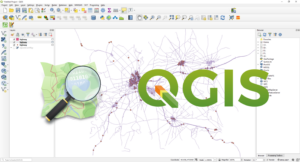 Quantum GIS (“QGIS”) is a Free and Open Source Software (FOSS) for mapping and spatial analysis. Like other Geographic Information Systems (GIS) softwares such as ESRI ArcGIS, QGIS can be used to create, edit, analyze, and display geographic data, enabling users to understand spatial relationships and patterns. This has wide-ranging applications in fields as varied as environmental management, public health, transportation, marketing, emergency management, and many others. In this workshop, you will learn how to find geographic data, assemble it in a simple map in QGIS, analyze it to identify a potential pattern, and visualize the result. Led by Neil Curri, Academic Computing Consultant for GIS, necurri@vassar.edu
  Need a website? We will review the options you have available to you as a member of the Vassar Community. We’ll also cover our new resource : vassarspaces.net – where we empower users to become sys admins and install their own apps (WordPress, Scalar, Omeka and more!). Led by Baynard Bailey of Academic Computing Services and Nicole Scalessa of Digital Scholarship and Technology Services.
 Intro to Excel and Data Literacy

 Support for using Video in the Curriculum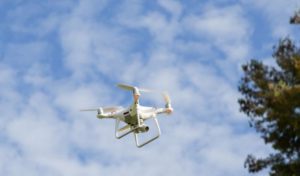
 Intro to Drone Mapping
 Digital Humanities Data Management Plan Basics

 Intro to ArcGIS Pro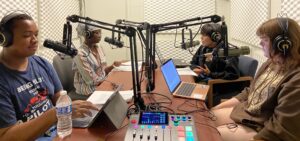

 Intro to the Vassar College Libraries Digital Library: Research and Classroom Use
 Planning to record voice or music and you have never done it before? Interested in podcasting? Perhaps you have an interview you need to edit and share? We’ll review free and cross-platform tools and review resources for audio production. We’ll conclude by visiting the audio nook and the studio in the basement of Chicago Hall. Led by Baynard Bailey of Academic Computing Services.
 Tired of naming files final_draft_v12_comments_corrected_v10.docx? Git is a commonly used version control system that solves this exact problem and is especially helpful when collaborating with others. GitHub is one of the most popular home for Git-based projects on the internet. This workshop will introduce you to Git and GitHub. You will practice making commits, pushing, and pulling, but alone and in collaboration with others.
 R is a statistical programming environment commonly used in academia for creating data visualizations and doing statistical analyses in a more regimented manner. This workshop provides a basic overview of using R and RStudio (a common interactive development environment) for statistical analysis (please note that this workshop does not cover statistical concepts).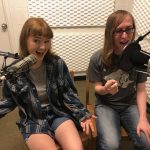
 September 21, 2023, 3:45-5:00, BLS 202
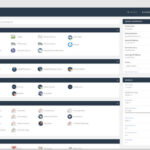 Now that you have signed up for vassarspaces.net account and built an online resource what’s next? Learn how to set up backup schedules in CPanel and perform a manual local backup of your site(s). Having issues with site loading times, also learn how to use image compression and caching plugins to improve site performance.
 Are you considering building an Omeka, Scalar, or WordPress site to share your work with the world? Have you already created a proof of concept for a digital project and want to know what comes next? You need a Digital Management Plan to ensure sustainability of your site! A DMP describes the data that will be acquired or produced during your project; how the data will be managed, described, stored, accessed, and preserved during and after the completion of the project. Led by Nicole Scalessa of Digital Scholarship and Technology Services.

 Wednesday, February 8, 3:00 – 4:00 pm,
 Wednesday, March 1, 12:00 – 1:00 pm,
  Wednesday, April 19,
  Blender is a free and open-source 3D computer graphics software toolset used for creating animation, art, visual effects, 3D printed models, motion graphics, interactive 3D applications, VR, and computer games. Participants will receive an introduction to the new interface of Blender 3.0 during the first week, and get access to high-powered desktop computers to work through personal 3D modeling projects in a communal setting.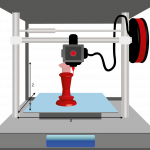
 Wednesday, November 2,
 alternative formats for their Moodle materials, and instructors will be able to evaluate the accessibility of their Moodle sites and fix any identified issues. This workshop will demonstrate those tools to you. Led by Steve Taylor of Academic Computing Resources.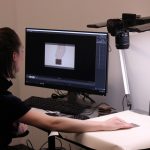
 The space is the legacy of Rick Jones, a retired sound engineer that used to support the technical needs of the language faculty. The studio has supported countless student and faculty projects, as well as professor hosted podcasts like Curtis Dozier’s

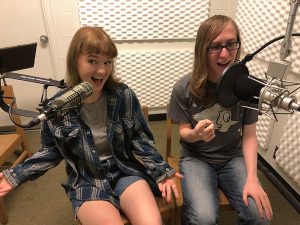 Planning to record voice or music and you have never done it before? Interested in podcasting? Perhaps you have an interview you need to edit and share? We’ll review free and cross-platform tools and review resources for audio production. We’ll conclude by visiting the audio production facilities in the basement of Chicago Hall. Led by Baynard Bailey of Academic Computing Services.